

- Features
- Preview App Feature
Features
Preview App Feature
Understand the Preview App feature and how it helps you build faster
What it is & why it matters?

Solid automatically builds and deploys your code to the cloud—no local terminal commands needed.
When you start a project with Solid, it creates and runs a preview app that lets you instantly see all changes.
🎯 What if the preview does not load after 1-2 minutes?
If the preview is not loading after 1-2 minutes please reach out to us at hello@trysolid.com Most likely there is a problem in our side.
💡 If the preview stays endlessly loading
You see the text Loading Preview… This normally takes 1-2 minutes but it has been much longer
Don’t try to fix it by asking the AI. This issue is related to the server, not the AI or the project you built. It’s like trying to fix your computer by asking an LLM to repair it—two completely different things. No matter what the AI does, it can’t solve a problem that comes from the server itself.

-
Option 1: If this was your first project and you changed the name:
- Change it back to exactly:
first-project - Then go to https://app.trysolid.com/deployments.
- Click Stop and then Delete. Be patient. Try a few times.
- Once the project disappears, go back to your project, open it and restart it. It might take a while to stop it.
- Change it back to exactly:
-
Option 2: Restarting the VM (note: this will delete the development database):
- Go to https://app.trysolid.com/deployments.
- In the line labeled “preview” (grey), click Stop and then Delete (or Delete directly if there is no “stop” button). Note: The line “published” in the image below wont be there if you have not published your project yet. The development database data will be lost.

- Go back to your project, open it and restart it.
-
Option 3: If the preview still doesn’t load, please reach out to us at hello@trysolid.com
💡 If you see a complete white screen
No “loading preview”, just white!

Two options to solve it:
Option 1:
- Open the preview in a new window
- → right-click
- → select “Inspect”
- → go to the Console tab
- → find the error (it normally starts with
Uncaught SyntaxError:... - → tell the AI: “When I open the page, it’s white. I see the error: ‘paste here all the error’”
Option 2:
- Click ”Restore” on the message that broke the app
View Cloud Logs Button
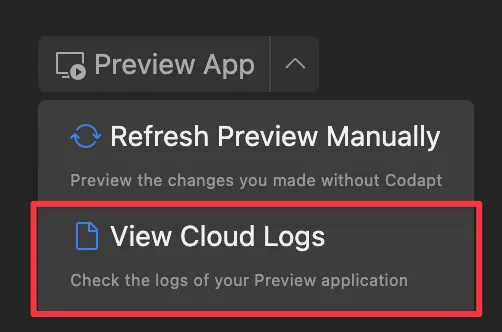
Clicking View Cloud Logs opens a live stream of your application’s server-side logs in the Solid dashboard. This feature enables real-time debugging and monitoring—letting you track requests, errors, and warnings as they occur in the cloud runtime.
What You Can Monitor
Best Practices
Development vs Production: Just like in any real software, there’s always a separate database for development and for production.
For Development
- Use the preview app for testing and development
- Share preview links with team members for feedback
- Monitor cloud logs for debugging issues
For Production
- Deploy to your production environment when ready
- Use production database for live data
- Monitor production logs separately from development logs
Troubleshooting
If your preview app isn’t working as expected:
- Check Cloud Logs: Look for error messages in the cloud logs
- Manual Refresh: Try clicking “Refresh Preview Manually”
- Restart Preview: Sometimes restarting the preview app helps
- Contact Support: If issues persist, reach out to our support team
Remember that preview apps are automatically cleaned up after 24 hours of inactivity to keep our infrastructure efficient. Simply make a new request to TrySolid to spin up a fresh preview app.