

- Get Started
- Welcome to Solid
Get Started
Welcome to Solid
Your guide to building production-ready apps with Solid AI
Here are seven simple tips you need to read
These best practices will help you get the most out of Solid and build production-ready applications efficiently.
1. Instructions for the First prompt
- DON’T:
- Don’t request too many features all at once. Build gradually.
- Don’t include code
- Don’t mention programming frameworks: Avoid naming technologies like React, Node.js, Django, Angular, etc. in your product description.
- Don’t mention specific databases: Avoid naming databases like Supabase, PostgreSQL, MongoDB, Firebase, etc.
- DO:
- A great prompt includes
- Description in 1–2 lines (e.g., Barbershop Appointment Scheduling tool).
- Different user roles (e.g., Two Roles: Barbershop Admin and the Customer).
- Defines 1 or 2 features per user role, not all at once (e.g., Admin can view their calendar in an admin panel at the page /admin; Client can signup and book appointments). You can introduce additional features gradually later.
- A paragraph about the visual design instructions (see examples here)
- If you have a large document or text with the definition of your project use our helper tool to generate the sequence of prompts: https://pmagent.codapt.app/
- A great prompt includes
2. Build iteratively
Don’t request too many features all at once. Build gradually. Make sure one feature is working before you jump to the next. If you want to add an integration (to pay, to send emails, etc.) do it an different step. Ideally you want to build a few features, make them work, see and try everything and when its working, you request the next features.
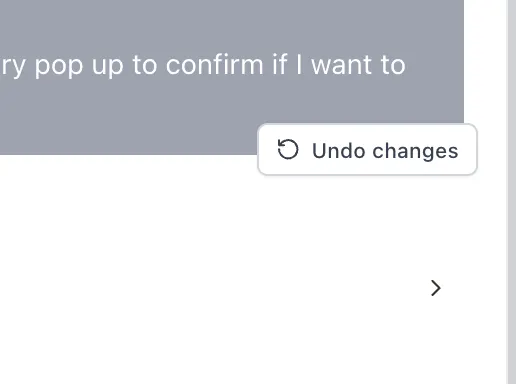
3. If you can’t fix an error, click “Undo changes” to break the loop
After a few unsuccessful attempts, go back to the initial prompt that broke the app, click “undo changes” (below each prompt sent), and then try different wording or a new approach. The key is to get out of the loop.
4. Avoid stacking new code on top of layers of “bad code”
If something only works after a few attempts, it’s usually better to restore your project “undo changes” to the state before those failed attempts and then resend the prompt that actually worked. That way, your project stays clean and maintainable. Otherwise all those intermediate steps might have added unnecessary code to your project.
5. Solid does not have conversation memory
Solid understands your project deeply at every step. But it doesn’t remember past chat messages, by design. So avoid messages like “do it like before” or “it is not working” Just describe what you want, and Solid will handle it!
6. You can build multiple projects in parallel
You don’t need to keep the window open while the AI is building. Just go back to the homepage to start a new project, or even close everything and return later once it’s finished.
7. Check the status of Solid
Sometimes our servers are down due to the high demand. Check status here
8. If something does not work, ask the AI to fix it
Be as specific and detailed as possible. Here are a few prompts you can send Solid in case something doesn’t work as expected:
Got an error?
"when I tried to [describe the action you took] I saw this error:

[paste the error message]"
See just a complete white screen? (no “loading preview”, just white!)
Two options to solve it:

1. try this first: Open the preview in a new window → right-click → select "Inspect" → go to the Console tab → find the error → tell the AI:
"When I open the page, it's white. I see the error: '…'"

2. if not, click "Restore" on the message that broke the app.
See a “Not found” message? That feature isn’t built yet.
"Build this feature: [describe]"
Something is not working as intended
Be as detailed as possible (which pages, which buttons, what does each button say, what is it doing now, what is it suppose to be doing, etc)
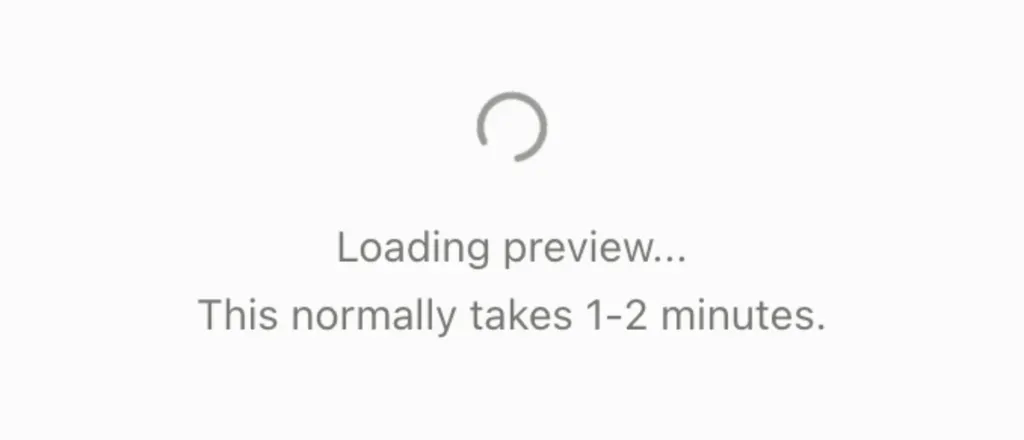
Preview stays endlessly loading?
If you see the text “It normally takes 1–2 minutes,” but it has been much longer:
-
Option 1: If this was your first project and you changed the name:
- Change it back to exactly:
first-project - Then go to https://app.trysolid.com/deployments.
- Click Stop and then Delete.
- Change it back to exactly:
-
Option 2: Restarting the VM (note: this will delete the development database):
- Go to https://app.trysolid.com/deployments.
- In the line labeled “preview” (grey), click Stop and then Delete. The line “published” wont be there if you have not published your project yet.

- Go back to your project, open it and restart it.
-
Option 3: If the preview still doesn’t load, please reach out to us at hello@trysolid.com